Backing Up and Restoring VMs with Azure Backup
Posted on Wed 30 September 2026 in Cloud
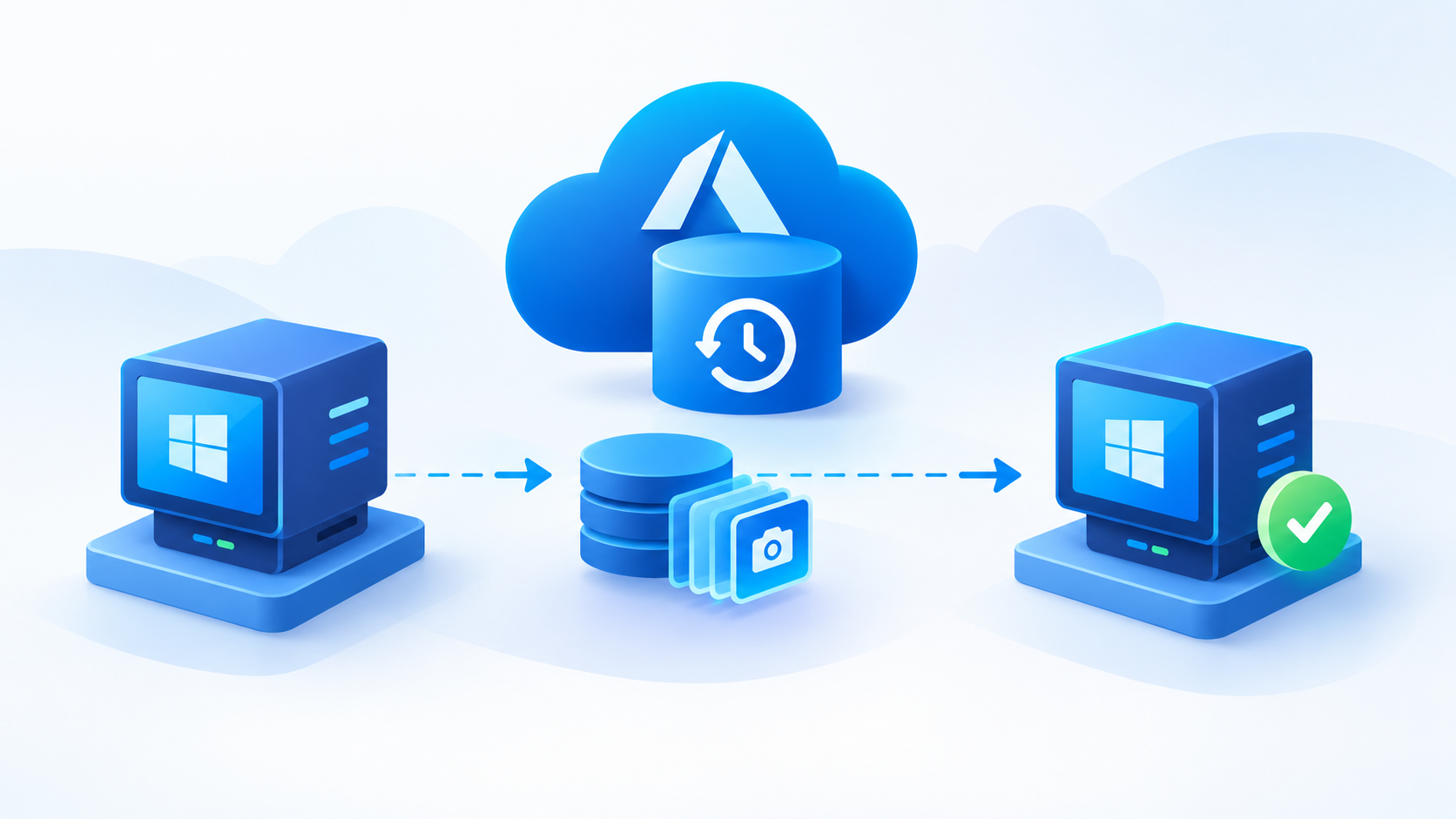
A VM that cannot be recovered is a risk no matter how well it runs. Azure Backup gives you a managed way to protect Azure virtual machines without deploying backup servers or agents by hand. This post walks through how it works, how to set it up, and how to restore when something goes wrong.
How It Works
Recovery Services Vault The vault is the container that stores your recovery points and backup policies. Create it in the same region as the VMs you want to protect, since a VM can only be backed up to a vault in its own region.
Backup Extension The first time a backup runs, Azure installs a backup extension on the VM automatically. It coordinates with the guest OS to take a consistent snapshot, so you do not need to install or manage anything yourself.
Snapshot and Vault Tiers Each backup takes a snapshot of the VM disks, which is kept locally for fast recovery, and then transfers the data to the vault. Recovering from the local snapshot is much faster than pulling data back from the vault.
Setting Up a Backup
Create the Vault In the Azure portal, search for Recovery Services vaults and create one in your VM's region. Choose the redundancy option (locally redundant, zone redundant, or geo redundant) before you protect anything, because it is hard to change once items are registered.
Define a Backup Policy The policy sets how often backups run and how long recovery points are kept. The enhanced policy supports multiple backups per day and is the better choice for critical workloads, while the standard policy is fine for a daily backup.
Enable Backup on the VM Open the VM, go to Backup under Operations, select your vault and policy, and enable it. You can trigger the first backup immediately instead of waiting for the schedule, which is a good way to confirm everything works.
Consistency Levels
Application Consistent On Windows, backups use VSS to capture the state of running applications and memory, so databases and apps come back in a clean state. On Linux you can use pre and post scripts to get the same result.
File System Consistent If application consistency is not possible, Azure Backup falls back to a file system consistent snapshot. Data on disk is intact, but in flight application transactions may not be captured.
Restoring a VM
Create a New VM This is the safest option because it leaves the original untouched. You get a fresh VM built from the recovery point, which works well for testing a restore or recovering side by side.
Restore Disks This restores only the disks to a storage account, and you then create or attach them yourself. Use it when you need custom networking, a different VM size, or want to swap a disk into an existing machine.
Replace Existing This overwrites the disks of the current VM with the recovery point. It is quick for rolling back a bad change, but it replaces current data, so confirm the recovery point before you start.
File Recovery Instead of restoring the whole VM, you can mount a recovery point as a drive using a script and copy out individual files or folders. This is the fastest fix when someone just deleted one file.
Cross Region Restore With a geo redundant vault you can enable Cross Region Restore and recover into the paired region. This is what you rely on during a regional outage, and it is worth testing before you need it.
Protecting Your Backups
Soft Delete Deleted backup data is retained for a period of days so an accidental or malicious deletion can be undone. Leave it enabled.
Immutability and Multi User Authorization Immutable vaults stop recovery points from being deleted or shortened early, and multi user authorization requires a second approval for risky operations. Together they protect against ransomware and compromised admin accounts.
Best Practices
Test Your Restores A backup you have never restored is only an assumption. Schedule regular test restores to a separate resource group and record how long they take.
Match Retention to Requirements Longer retention costs more, so set daily, weekly, monthly, and yearly points based on your compliance and recovery needs rather than keeping everything.
Monitor and Alert Use Backup center and Azure Monitor alerts so failed jobs get noticed the same day, not when you need the data.
Conclusion
Azure Backup takes the heavy lifting out of protecting VMs: create a vault, attach a policy, and let the extension do the work. What matters most is choosing the right restore option for the situation and proving it works before an incident. Start with one non critical VM, run a full restore, and build from there.