What Is a PEM Key in an Azure Virtual Machine?
Posted on Sat 26 September 2026 in Cloud & DevOps
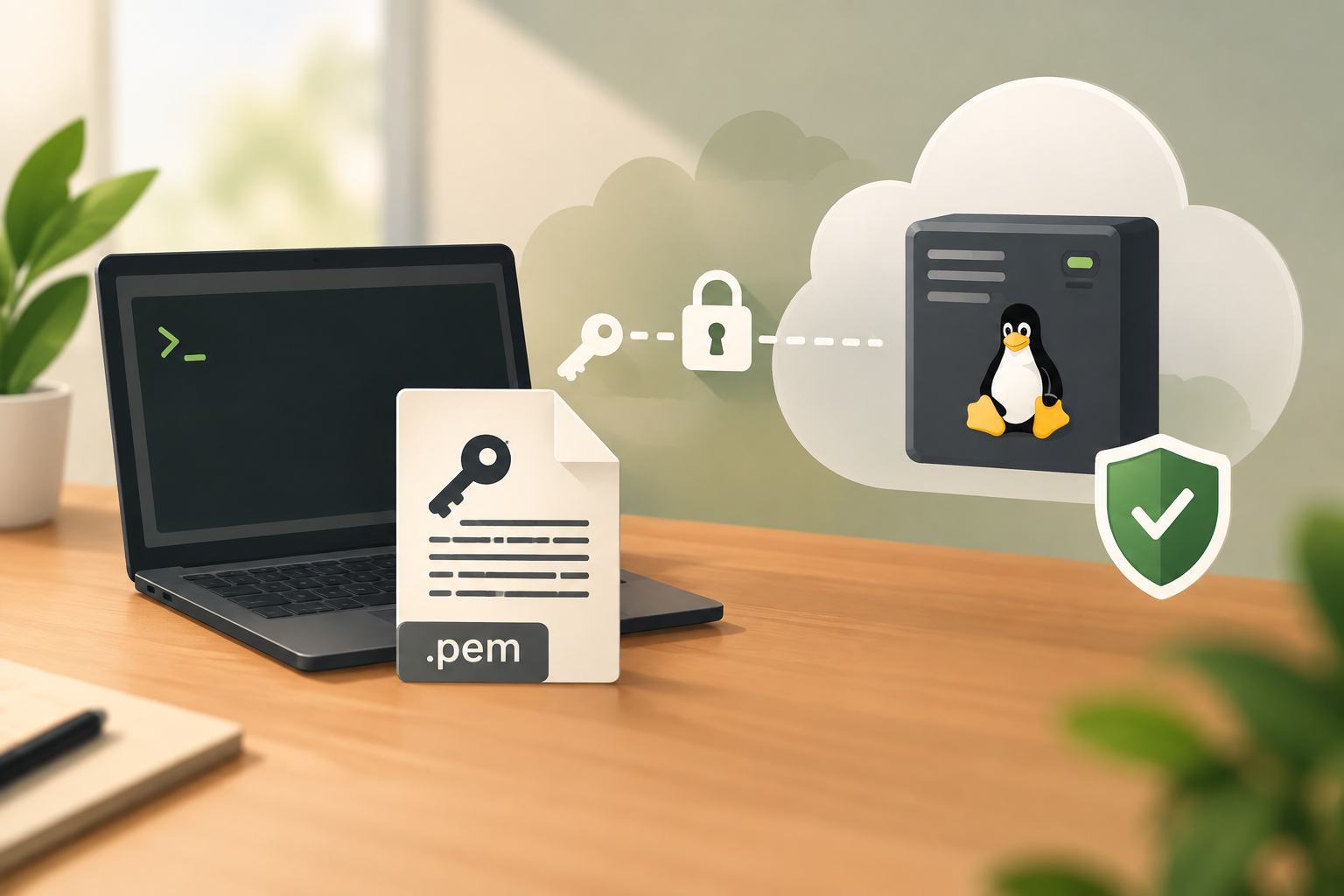
When you create a Linux virtual machine on Azure, the portal asks you to download a small file ending in .pem. Many beginners click through, forget where it went, and later find they can't get into their own server. This post explains what that file is, how it works, and how to keep it safe.
The Basics
PEM Key — A PEM key is the private key file you use to log into a Linux Azure VM over SSH, in place of a password.
"PEM" (Privacy-Enhanced Mail) is only the file format: plain text that begins with -----BEGIN RSA PRIVATE KEY----- or -----BEGIN OPENSSH PRIVATE KEY-----.
Key Pair — When you choose "SSH public key" authentication, Azure generates two matching keys.
The public key is placed on the VM, in ~/.ssh/authorized_keys. The private key is downloaded to you as the .pem file.
SSH (Secure Shell) — SSH is the protocol you use to open a secure terminal on a remote Linux machine. When you connect, SSH checks that your private key matches the public key on the VM. If it does, you're logged in and no password is needed.
Why Azure Uses Keys Instead of Passwords
Brute-Force Resistance — Bots scan the internet all day and try common passwords on every open SSH port. A 4096-bit RSA key can't realistically be guessed, so key-based login removes that entire class of attack.
No Password to Leak — The public key on the server is useless without the private key.
Even if someone copies the VM's authorized_keys file, they still can't log in.
Using Your PEM Key
Locking Permissions — SSH refuses a private key that other users on your machine can read.
On Linux or macOS, run chmod 400 ~/Downloads/myvm_key.pem once after downloading.
Connecting — Use the -i flag to tell SSH which identity file to use, with the VM's admin username and public IP:
ssh -i ~/Downloads/myvm_key.pem azureuser@<VM-public-IP>. The same command works in Windows PowerShell.
Common Mistakes
Losing the File — Azure lets you download the private key only once, right after the VM is created. Back it up to a password manager or an encrypted drive immediately. It can't be downloaded again later.
Committing It to Git — Pushing a .pem file to GitHub hands your server to anyone who finds it.
Add *.pem to your .gitignore before your first commit.
Pasting It into Workflow Files — CI/CD pipelines such as GitHub Actions often need SSH access to deploy.
Store the key's contents in a repository secret (for example SSH_PRIVATE_KEY), never in the workflow YAML itself.
Recovering Access
Reset SSH Public Key — If the key is lost, open the Azure Portal, go to your VM, and choose Help → Reset password. Select "Reset SSH public key" and paste a new public key. Azure installs it on the VM without deleting your data.
Generating a New Pair — Create a fresh pair on your own machine with ssh-keygen -t rsa -b 4096 -f myvm_key.
This gives you myvm_key (private, keep it safe) and myvm_key.pub (public, paste it into Azure).
Recap
A PEM key is your VM's front-door key. Azure keeps the lock (the public key) and hands you the only key that fits (the private key). Lock down its permissions, back it up once, keep it out of Git, and you'll always be able to get into your server.